
Getting started #
App Scan QR Sign in My Work
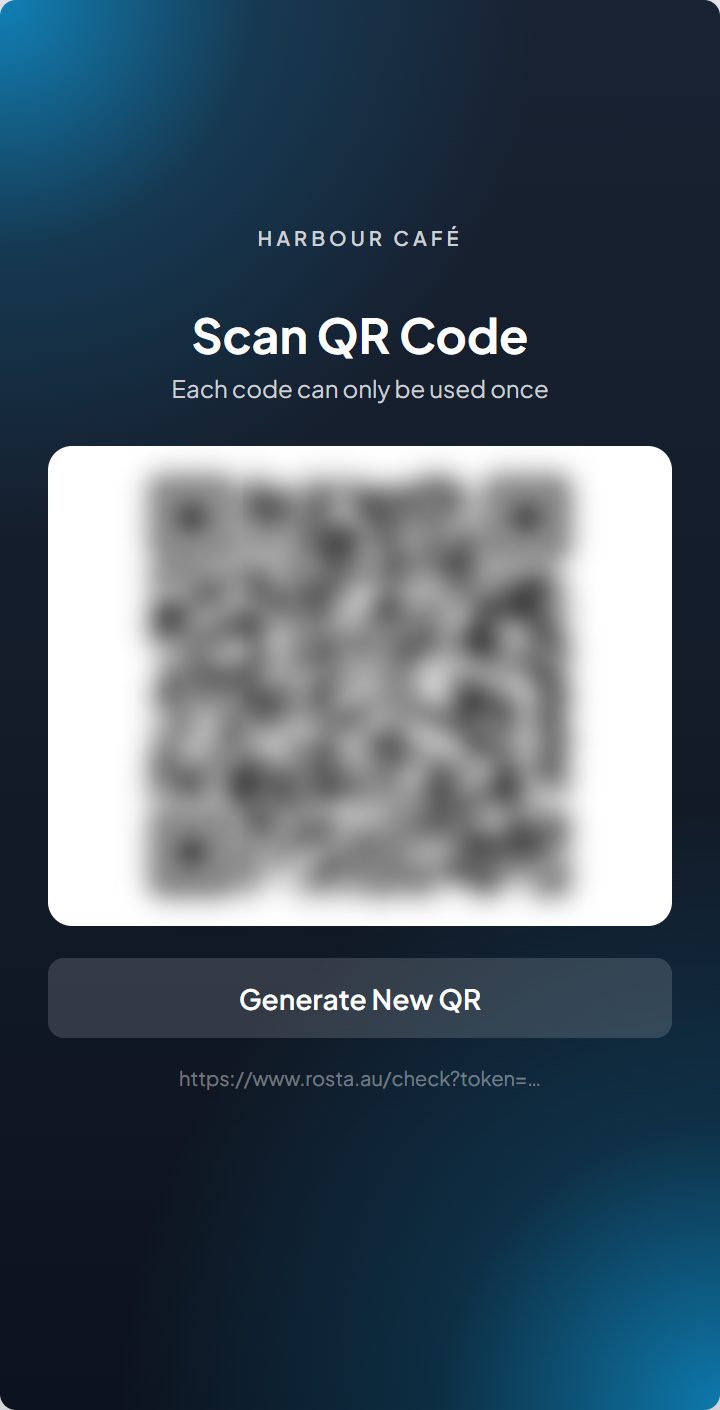
Your manager sets you up in Rosta and gives you a 6-digit employee code. The first time you open the app it starts on a QR scanner — scan the code your manager shows from the dashboard, then enter your employee code once.
The app opens on a QR scanner
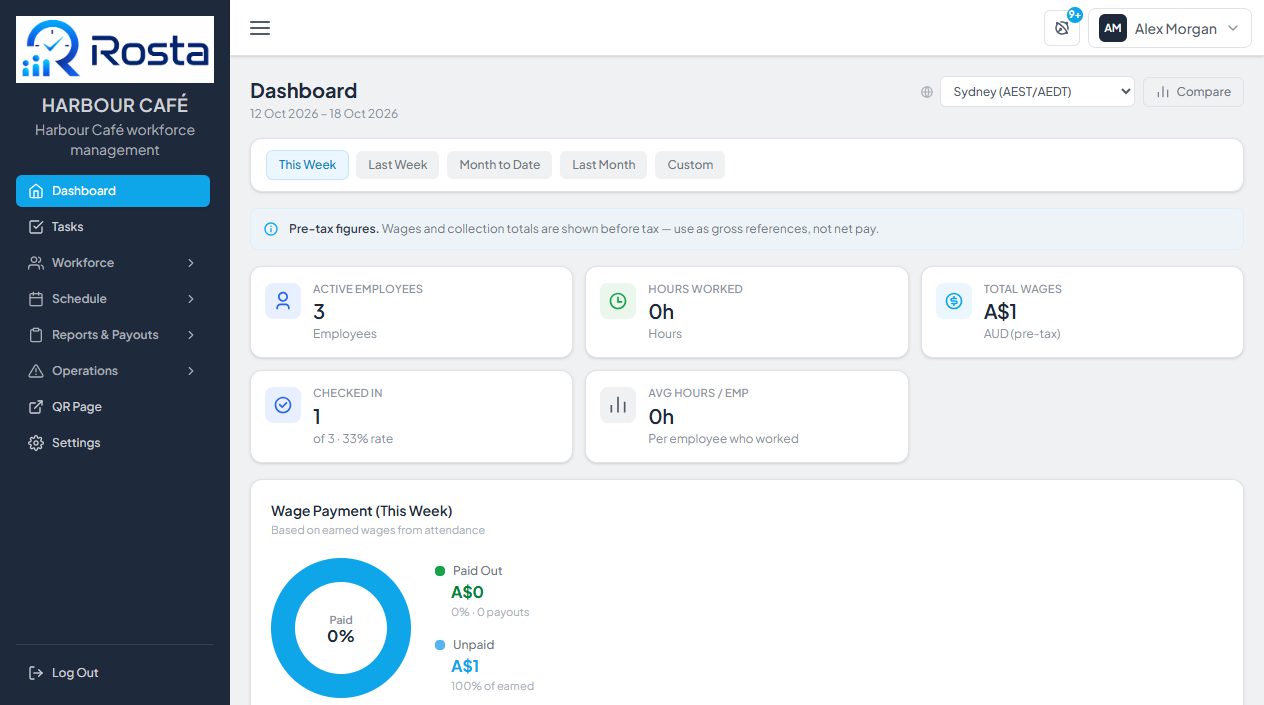
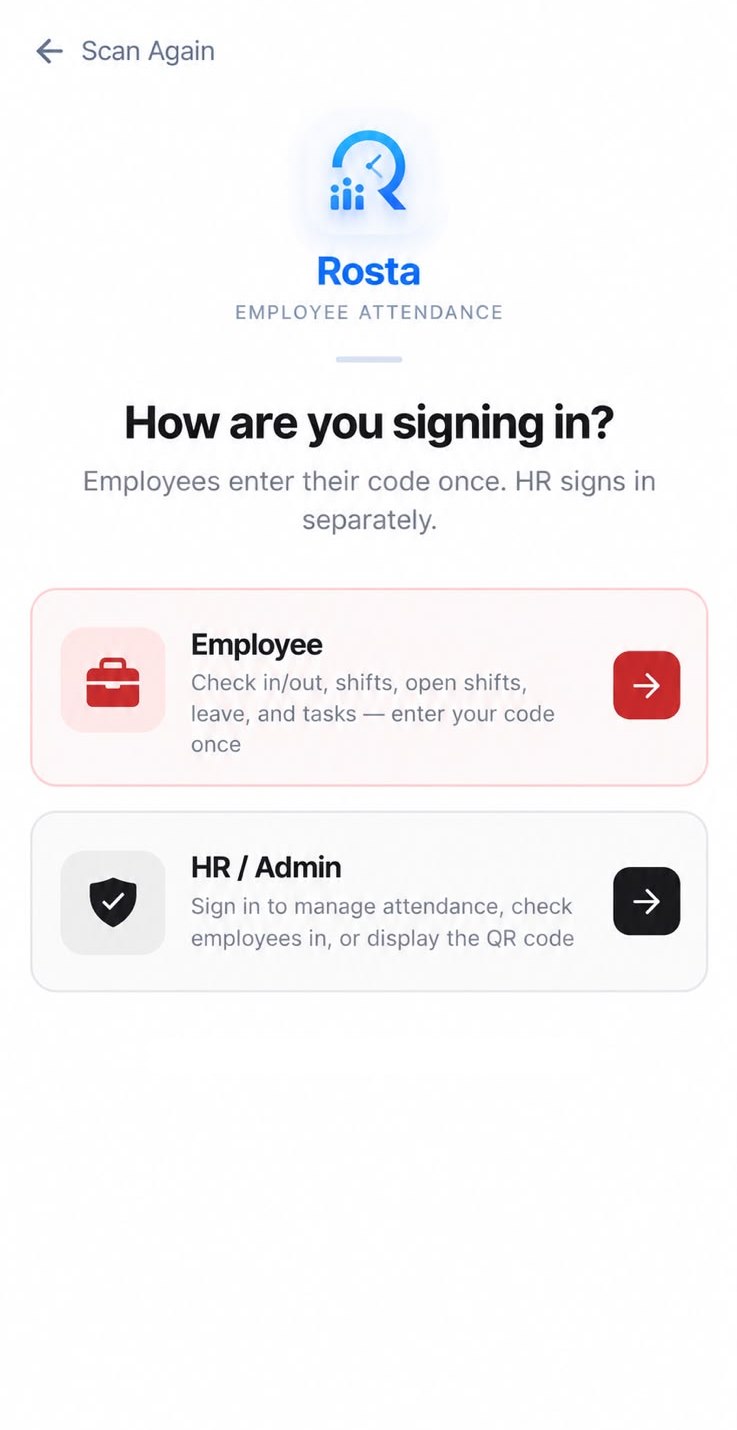
The first time you open Rosta, the camera opens straight away to scan a QR code. Point it at the code your manager shows from the dashboard's QR Page. Once it's read, the sign-in screen below appears. Scanned the wrong code? Tap Scan Again at the top.
Choose Employee
On How are you signing in?, tap Employee.
Enter your code — once
Type the employee code your manager gave you. The app remembers it, so you only do this once.
HR / Admin on the same screen is for managers.
Meet My Work
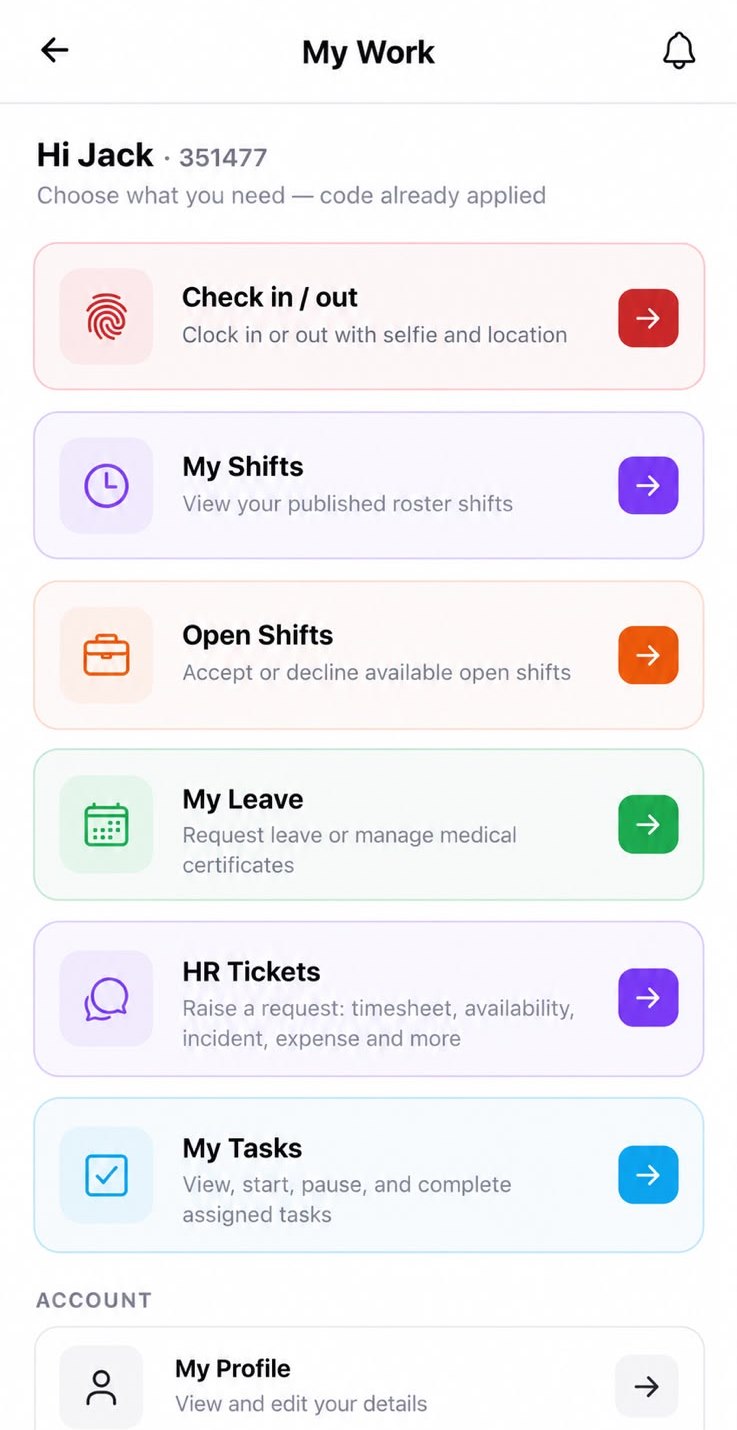
You land on My Work, your home screen. Your name and code are shown at the top.
Everything is a tile
Each tile opens one part of the app: checking in, shifts, open shifts, leave, HR tickets and tasks.
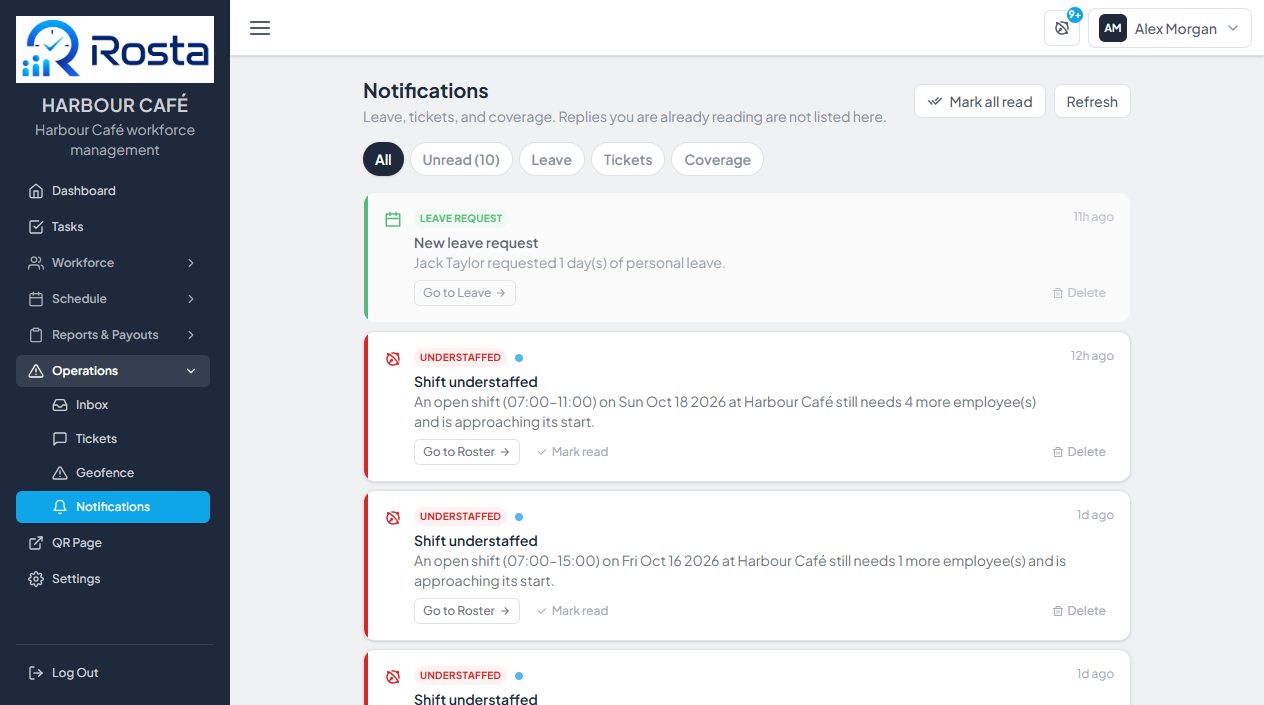
Check your notifications
The bell at the top right shows your notifications.
What each tile is for
| Tile | What it's for |
|---|---|
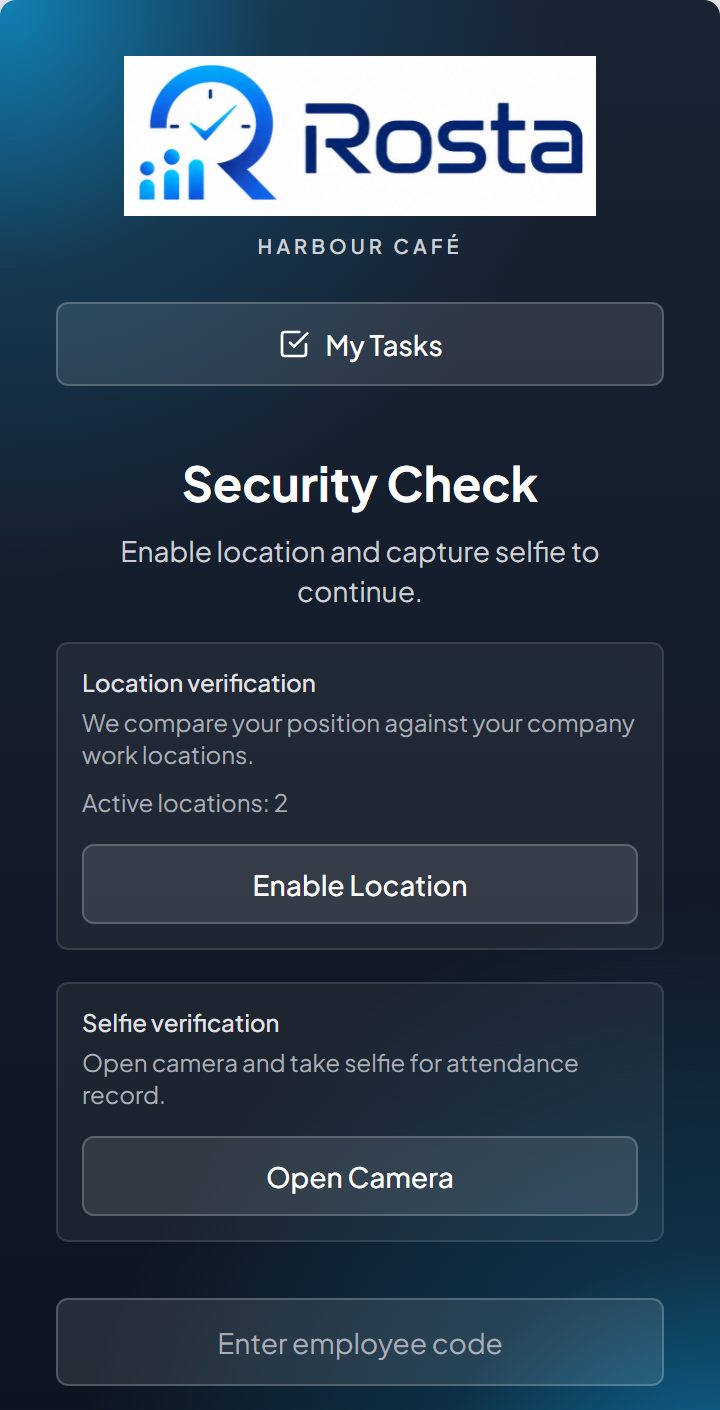
| Check in / out | Clock in or out with a selfie and your location. Tour |
| My Shifts | Your published roster shifts, and cover requests. Tour |
| Open Shifts | Extra shifts you can accept or decline. Tour |
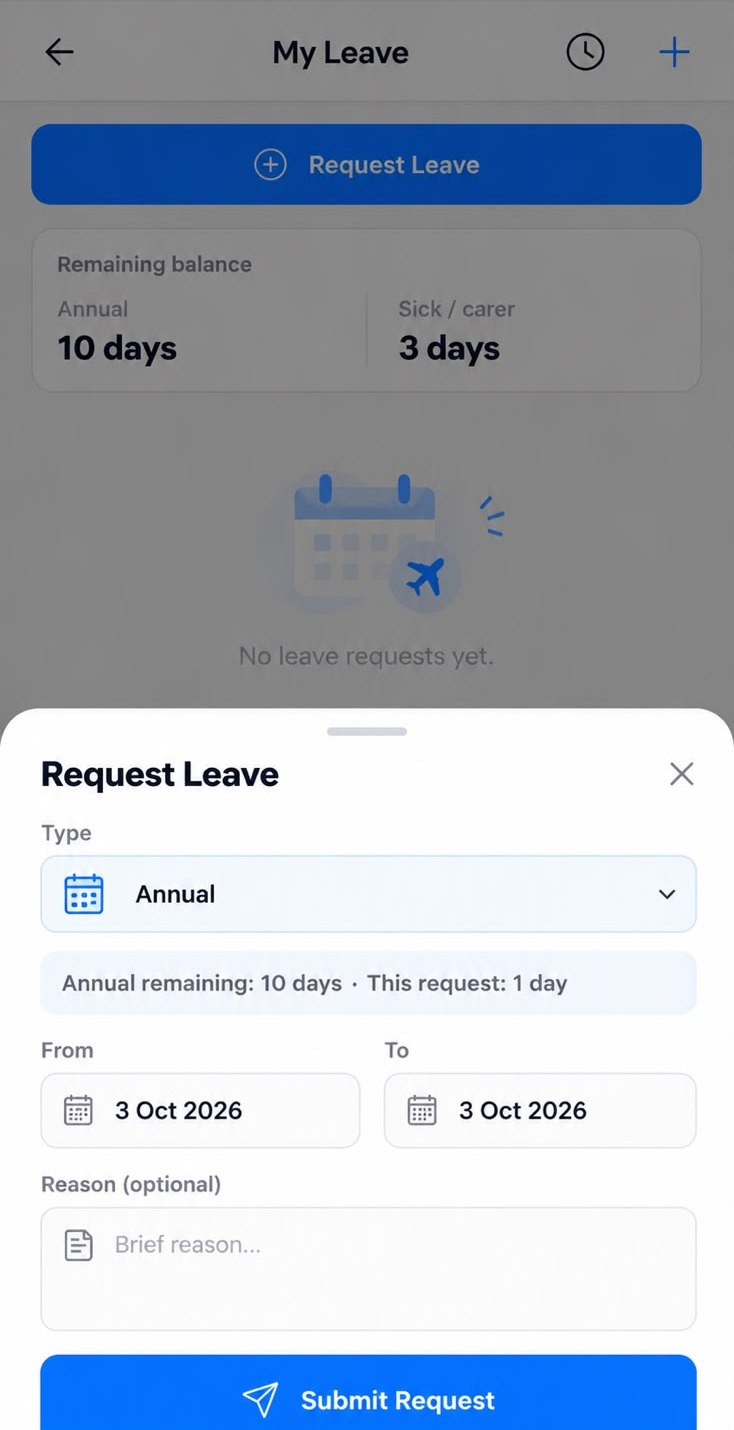
| My Leave | Request leave and manage medical certificates. Tour |
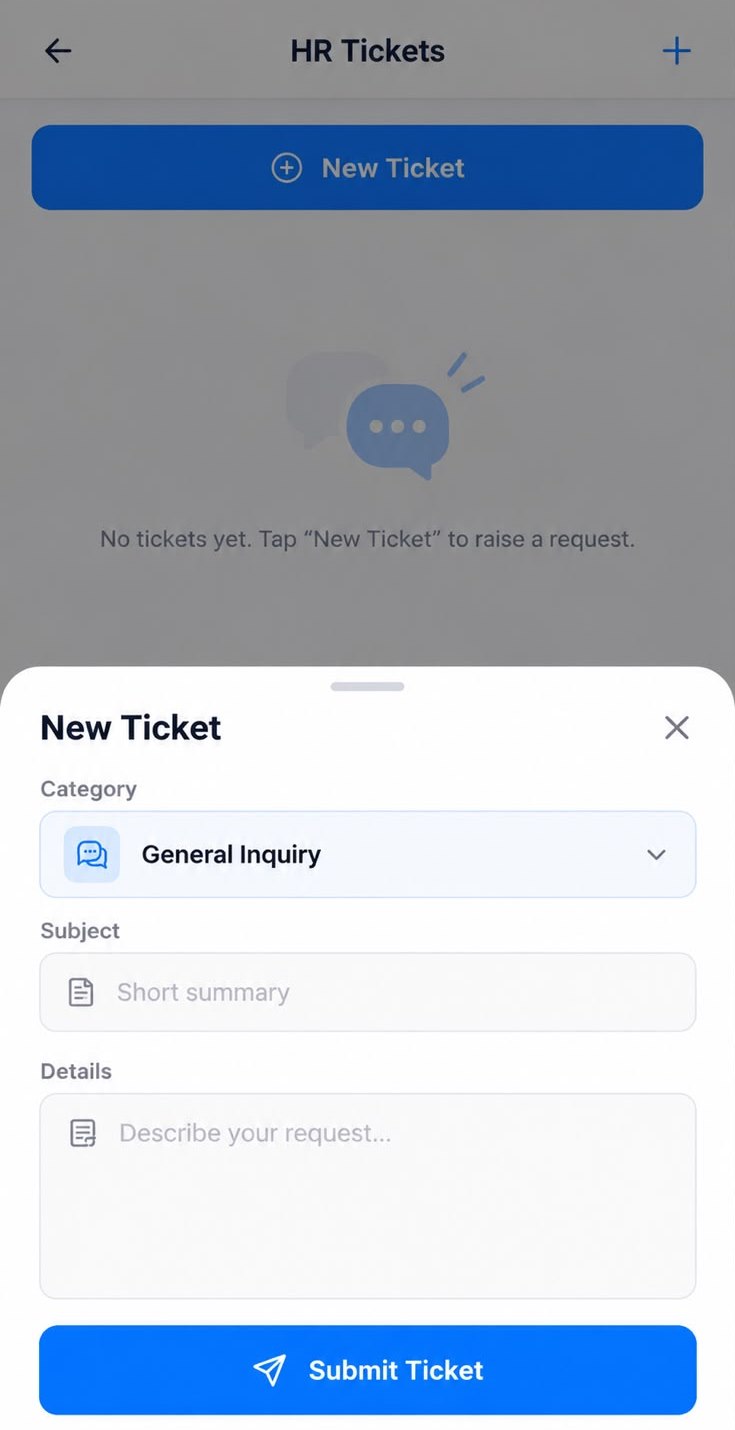
| HR Tickets | Requests about timesheets, availability, incidents, expenses and more. Tour |
| My Tasks | View, start, pause and complete tasks. Tour |
| My Profile | View and edit your details. |